





- Політика повернення протягом 30 днів
- Безкоштовний домен, Безкоштовне перенесення сайту, Безкоштовний SSL-сертифікат
- Служба підтримки, доступна 24/7/365 через телефон, чат, твіт, базу знань

- Pay-as-you-go pricing with scalable resources
- Global data center network for flexible deployment
- Limited support for basic users; paid support plans can be expensive
HostGator vs AWS: Quick Summary
After trying both, I’d go with HostGator. It’s cheaper, easier to use, and comes ready with everything (SSL, backups, support, and even a free domain).
AWS is seriously powerful and faster overall, but it takes a lot more time and technical know-how to set up and manage.
Unless you’re running complex cloud apps, HostGator just makes the whole experience smoother and more affordable.
1. Prices and Plans Comparison
HostGator’s Plans Are More Affordable and Beginner-Friendly.
When comparing HostGator vs AWS pricing, HostGator is the clear winner for small businesses and beginners. I tested both, and AWS quickly became expensive and complex, especially with its pay-as-you-go pricing that can skyrocket if you’re not careful.
HostGator, on the other hand, offers simple and budget-friendly plans with generous features like unmetered bandwidth, SSD storage, and even a free domain. It has fixed prices and plenty of included tools.
AWS is powerful, yes — but unless you’re a developer building custom cloud apps, it’s likely overkill (and overpriced) for your needs.
*AWS prices vary depending on region, usage hours, bandwidth, storage type, and instance type — making exact pricing unpredictable for most users.
2. Customer Support Comparison: Who’s Got Your Back?
HostGator Provides Fast, Friendly Support Without Extra Costs.
HostGator Customer Support
I wanted to test how responsive and helpful HostGator’s support actually is. So I went straight to their website, hovered over Contact, and clicked Live Chat.

A chat window opened instantly — no need to log in first or dig around for support access.
I chose the option for “Purchase New Services”, then selected Shared Hosting, entered my name and email, and confirmed I wanted a transcript.
All of this took under a minute, and within 30 seconds, I was chatting with a live support agent.
I asked a fairly technical pre-sales question about running a Laravel app with a queue system (like Redis or Supervisor) and whether I’d have terminal access to manage it.
The agent quickly understood what I was asking and clearly explained that VPS hosting would give me full access to run Laravel with custom configurations.

The agent didn’t waste time with scripted replies or vague answers. I got the exact information I needed, and they were even ready to help me with the purchase right there in the chat.
Overall, the experience felt fast, smooth, and reassuring — perfect for beginners and advanced users alike.
AWS Customer Support
Next, I switched to testing AWS support, specifically under their Basic Support Plan, which comes free by default. I already knew this plan wouldn’t help with technical setup questions, but I wanted to test how well they handled billing-related issues.
So I went to the AWS Support Center, clicked on Contact Us, and selected Live Chat.

Within about a minute, I was connected to a representative. I asked a detailed question about how billing works if you buy a Reserved Instance and later change the instance type.
The response was excellent — clear, well-structured, and even included links to AWS documentation. The agent walked me through the differences between Standard Reserved Instances and Convertible Reserved Instances, and how modifications work depending on your instance class.

But here’s the catch. When I asked whether I could get help configuring a server or setting up a reverse proxy, the agent politely pointed out that I’d need to upgrade to a Developer or Business plan for technical support. These upgrades aren’t cheap, and for someone just hosting a small site or app, they might not be worth it.
So while AWS did provide accurate and polite support, it’s very much limited to account and billing help unless you’re paying extra.
3. Hosting Features Comparison
HostGator Wins for User-Friendly Features and Simplicity.
HostGator Features
I’ve tested HostGator extensively, and the features it includes right out of the box make it ideal for beginners and small businesses. You get a clean cPanel for site management, an intuitive drag-and-drop website builder, and free SSL to secure your site.
Backups and migrations are included, which makes switching painless. I also liked the performance tools — CDN support and malware scanning are part of the deal on higher plans.
Most of what you need to run a site smoothly is bundled, so you’re not constantly juggling add-ons or hidden costs.
AWS Features
With AWS, you get access to some of the most advanced hosting features — including virtual servers (EC2), object storage (S3), global CDN (CloudFront), managed databases (RDS), and high-level security tools like IAM, WAF, and Shield. You also get powerful scalability through auto-scaling, serverless functions with Lambda, and detailed monitoring via CloudWatch.
But here’s the catch: you have to build everything yourself. There’s no single, user-friendly “hosting dashboard.” Instead, you’re piecing your setup together using various services. Backups?
You’ll need to set up and manage snapshots. SSL certificates? They work through AWS Certificate Manager, but only with specific services like CloudFront and ELB — otherwise, you’ll need to install and renew them manually. And there’s no built-in email — you’ll need Amazon WorkMail or a third-party provider.
AWS is incredibly flexible and scalable, but unless you’re confident managing cloud infrastructure, it can feel overwhelming fast.
4. Website Performance Comparison
AWS Is Faster and More Responsive.
To get a real sense of how these platforms perform, I used GTmetrix, a popular website speed testing tool, to run actual performance tests.
I picked two live websites hosted on each provider:
- For HostGator, I tested their own homepage (hostgator.com).
- For AWS, I chose a high-traffic production site — Coursera.org — which runs on AWS infrastructure.
HostGator Performance Overview
Here’s what I found when I tested HostGator’s main site:
|
|

What does this tell me? HostGator’s core content loads quickly, but the site struggles with JavaScript and post-load performance. The long Time to Interactive and fully loaded time could make heavier pages frustrating to use, especially on shared hosting plans.
AWS Performance Overview
Now let’s look at AWS, using Coursera.org — a major website that depends on uptime and speed.
|
|

What stood out here was how efficiently AWS handled the overall page load process. While the backend response time was slower (due to the complex global delivery architecture AWS uses), the faster interactivity and full load time made the user experience smoother overall.
5. Ease of Use Comparison: Which Platform Is Easier to Use?
HostGator Wins for Simplicity and Beginner-Friendliness.
Registration and Creating a New Account
To see how easy it is to sign up, I first headed over to HostGator. From the homepage, I hovered over “Hosting” in the top menu and clicked “Web Hosting.”

I scrolled through the plans and selected the Baby Plan, then hit Choose Plan.
The next page prompted me to “Make a name for your website.” Since I wasn’t ready to register a domain, I chose “Choose domain later.”

After that, I landed on the checkout page. I selected a 3-year billing term ($4.50/month) and noticed a few optional upsells:
- Professional Email Trial
- SiteLock Essentials ($2.99/mo)
- CodeGuard Backups ($1.99/mo)

These were all clearly labeled, but if you’re not paying attention, it’s easy to add them by accident. On the right, I could see my full Order Summary, total savings, and today’s price ($162). HostGator also reminded me of the 30-day money-back guarantee.
Clicking Continue to Checkout took me to the final step — I filled out my billing address, contact info, created a password, and added my card. After reviewing everything, I clicked Submit Payment. Overall, the experience was smooth, beginner-friendly, and well-labeled.
Then I tested AWS. Signing up took a bit longer.
First, I went to aws.amazon.com and clicked “Create an AWS Account.” I provided my email, selected a root user password, and verified my email via a code.

Next came personal details — name, phone number, billing address — and then I had to enter my debit card. Even though I planned to use the Free Tier, AWS still required valid payment details.
Then came phone verification (SMS or call), followed by selecting a support plan. I chose the Basic Free Plan and clicked Complete Sign Up.
It was all straightforward for someone familiar with cloud tools, but not as beginner-friendly as HostGator. It felt more like opening a developer sandbox than signing up for web hosting.
User Interface – Client Area & Dashboard
Right after setting up my HostGator account, I landed in the Customer Portal, and I was impressed by how clear and well-organized it was.
Under the Hosting tab, I saw a summary table listing all my plans — their domain, plan name, status, and renewal dates. It’s all front and center. No digging.
The left-hand menu is also super clean. You’ve got:
- Home
- Websites
- Email & Office
- Domains
- Hosting
- Marketing
- Utilities (Renewals, Marketplace, Referrals)

For each plan, I had a Manage button and a cPanel Email shortcut. Even a beginner would find it intuitive. Everything I needed — from billing to support to server access — was two clicks away.
Then I jumped into the AWS Management Console.
The AWS dashboard is on another level — and I don’t mean that in a good way for beginners. It’s massive, technical, and feels like you’ve walked into mission control.
The console offers access to hundreds of services: EC2, S3, Route 53, IAM, RDS, Lambda — you name it.

There’s a search bar (which you’ll use often), and a sidebar showing recently visited services. Each AWS region has its own resource set, so if you change your region, your resources disappear — something that’s very confusing if you don’t know what’s happening.
It’s incredibly powerful but definitely not designed for everyday users managing a blog or portfolio.
Hosting Setup: Creating a New WordPress Website
One of the most important things I wanted to test was how easy it is to set up a WordPress site on each platform.
I started with HostGator to test how easy it would be to get my WordPress site up and running — and I have to say, the process was smoother than I expected.
I was redirected straight to the Customer Portal dashboard, no delays or confusing redirects.
Here’s how it went step by step:
- I clicked on “Websites” from the left-hand menu. This took me to the section where all my current websites would appear — but since I was just getting started, it was empty.
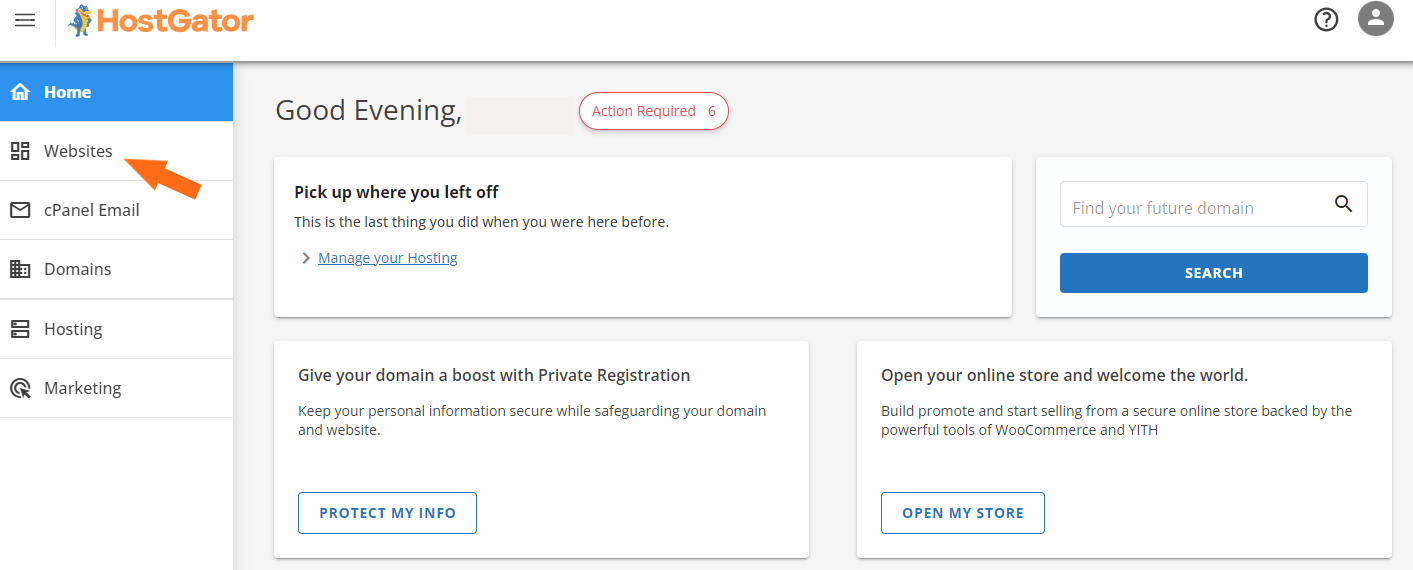
- I clicked “Add Site.” This prompted HostGator to send me to the Hosting tab, where I could choose the plan I just purchased.
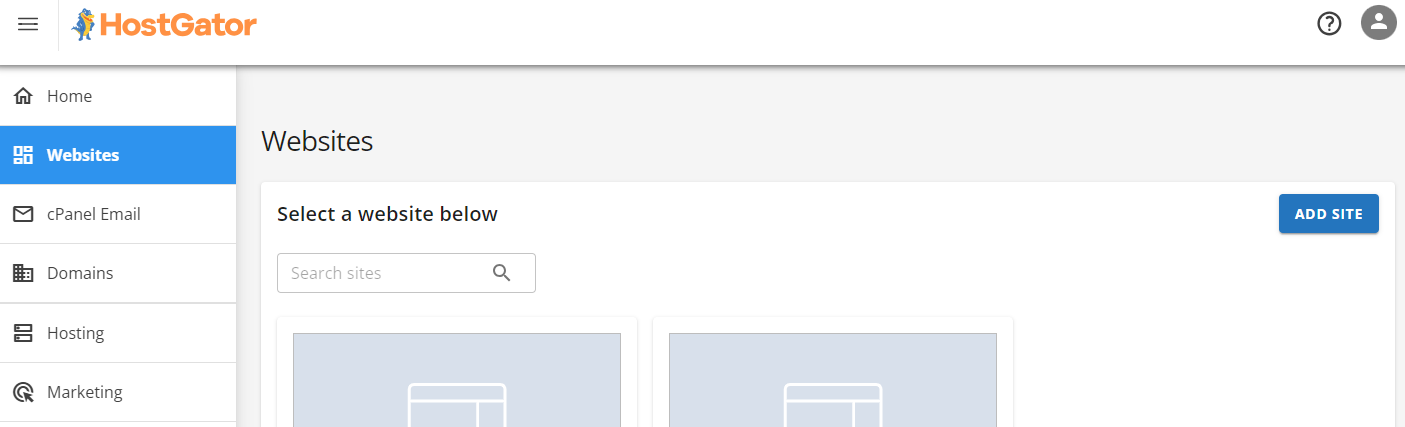
- I selected the hosting package I wanted, then clicked “Manage.” This opened up the hosting dashboard for that specific package.
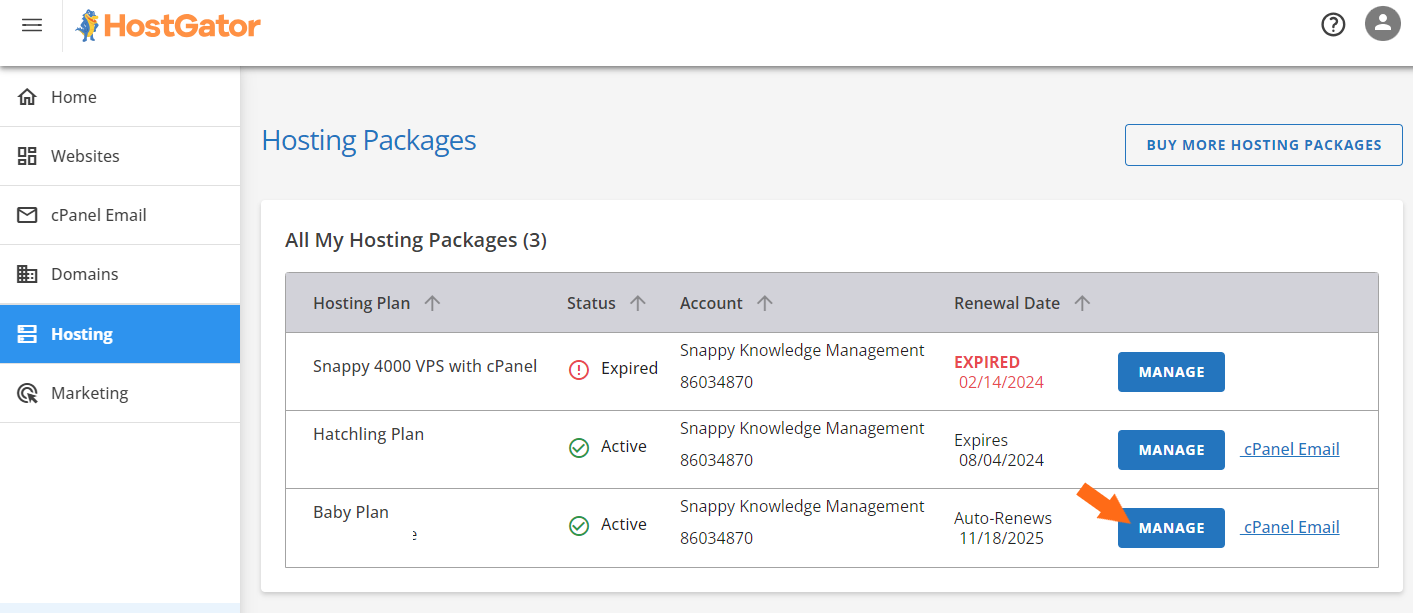
- Inside the hosting dashboard, I clicked “Add Site” again. This time, I was brought to the WordPress installation screen.
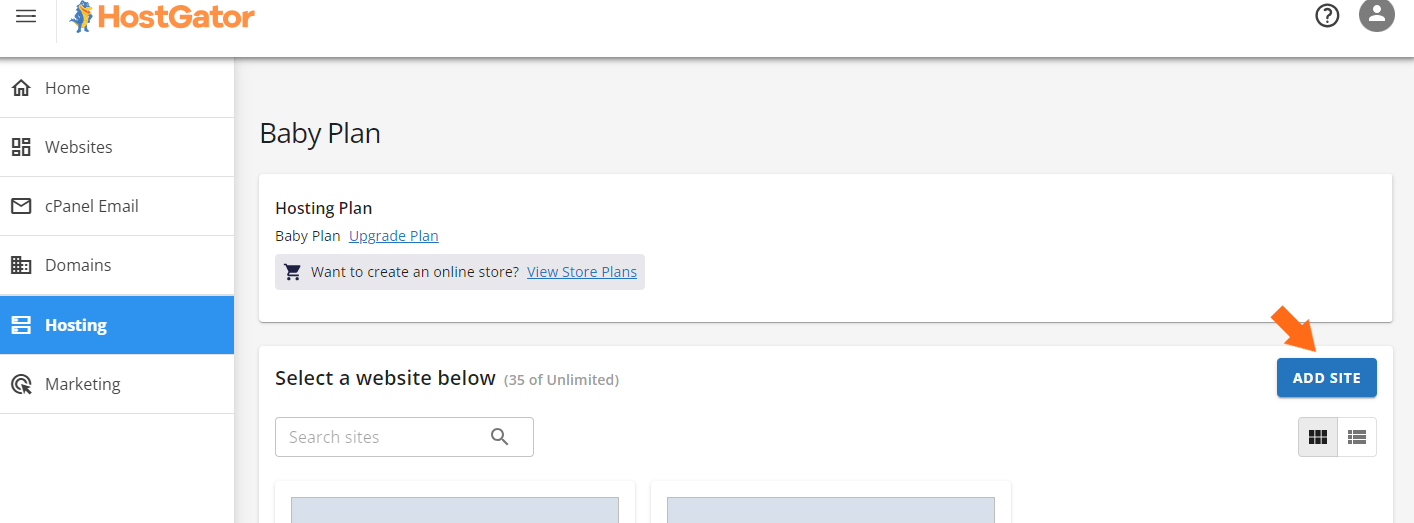
- I selected “Install WordPress” and hit “Continue.” At this point, HostGator asked me for a few optional details.


On the next screen, I had a few choices:
- Site Title: I could enter a name for my site or skip this step.
- Domain Options: I was given three choices:
- Use a custom domain I already own
- Use a temporary domain (super helpful for testing!)
- Skip domain setup entirely and add one later
I picked my domain and confirmed.
HostGator then automatically began the installation process. It took less than a minute. No confusing fields, no FTP credentials needed, no tech jargon.
Once the installation was done, HostGator gave me two easy ways to access my new WordPress dashboard:
- Option 1: From the Customer Portal — I just went back to Websites, clicked Edit Site, and I was logged in automatically using Single Sign-On (SSO). No need to remember or enter any passwords.
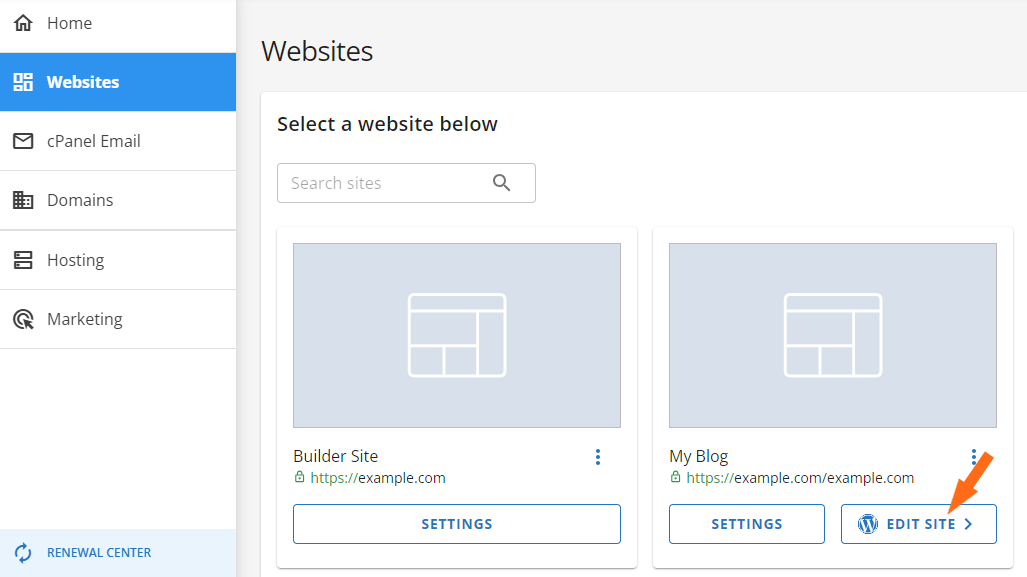

- Option 2: After DNS propagation, I could also log in directly via yourdomain.com/wp-admin using the credentials that were displayed during setup.
I used the SSO login from the HostGator portal, and honestly, it couldn’t have been more seamless. The one-click install paired with automatic login meant I had my WordPress site ready to go within minutes of purchasing my plan.
There was zero friction, and even if you’re a complete beginner, HostGator’s guided setup makes the whole process feel approachable and fast. I didn’t have to dig around for settings or manually upload files. Just click, click, done.
For anyone looking for a quick and frustration-free way to launch a WordPress site, HostGator nails it.
Then I tried AWS — specifically Amazon Lightsail, since it’s the most beginner-friendly way to launch a WordPress site on AWS.
Here’s what I did:
- Logged in to AWS and searched for Lightsail
- Clicked Create Instance
- Chose Linux + WordPress under Blueprint
- Selected a region and a pricing plan
- Named the instance and clicked Create

After a few minutes, the instance was running. But then I had to connect via SSH to get my WordPress password:
Only then could I log into WordPress via the public IP. To keep that IP from changing, I had to attach a static IP. And for a custom domain, I needed to create a DNS Zone, configure the records, and point my domain.
Lightsail simplifies AWS a bit, but it still took me 4–5x longer to get everything running compared to HostGator.
Server Management Dashboard
Lastly, I wanted to compare how each provider lets you manage your hosting environment — things like storage, resources, DNS, and backups.
With HostGator, it’s all handled inside the Customer Portal. Clicking Manage next to your hosting plan opens the dashboard with:
- Plan info
- Renewal settings
- IP address and server settings
- Launch cPanel
- DNS controls
- FTP/SSH access
- Add or remove websites

If you’re using VPS or Dedicated plans, there’s a “Resources” tab that breaks down CPU, RAM, disk space, and bandwidth. You don’t need to know command-line tools — just click what you need.
Then I switched to AWS, which doesn’t have one central dashboard for server management.
Instead:
- You use EC2 Console to launch, stop, and monitor virtual machines.
- You check CloudWatch to see performance graphs like CPU usage.
- You open Systems Manager to patch, script, or auto-configure groups of instances.
- For basic WordPress sites, Lightsail provides a friendlier panel — but it’s separate from EC2.

It’s like AWS splits everything into 10 tools and expects you to know where to go. For cloud engineers? Perfect. But for regular users? Overwhelming.
6. Privacy and Security Comparison: Which Platform is More Secure?
Your data is safer with HostGator — security features are pre-configured and beginner-friendly.
HostGator Privacy and Security
With HostGator, security is largely taken care of for you. They provide free SSL certificates, DDoS protection, daily backups, and malware scanning through SiteLock.
A Web Application Firewall (WAF) and secure access features like SSH key management and directory privacy are also integrated into the dashboard.
What I appreciated during testing is how simple it was to find and manage these settings. From the Customer Portal, I could enable free SSL, manage DNSSEC, scan my site with SiteLock, and set up automatic backups using CodeGuard.

And for users who want to go further, HostGator includes options to:
- Hide your site’s directory structure
- Change file permissions (right from cPanel)
- Enable secure FTP and email connections
- Configure and control shell access
- Upgrade security using partner tools like SiteLock and CodeGuard

Their documentation also makes it clear what you’re responsible for — like keeping passwords strong and CMS installations updated — but for most users, the heavy lifting is already done by HostGator.
AWS Privacy and Security
AWS is enterprise-grade when it comes to security, but it assumes you know how to set things up. You get free SSL certificates via ACM, DDoS protection via AWS Shield, and WAF services — but these are tools, not features that come pre-enabled.
Daily backups? You’ll need to configure them using Data Lifecycle Manager, AWS Backup, or manual snapshot scripts. Malware scanning? You’re on your own unless you bring third-party tools or integrate services like GuardDuty or Macie.
Where AWS shines is access control. Their IAM (Identity and Access Management) service lets you define extremely detailed permissions, enforce MFA, assign policies to roles, and more. But you’ll need to understand how to write those IAM policies or use AWS’s JSON-based templates.

And while AWS has equivalents to Cloudflare (like CloudFront, Route 53, and WAF), it doesn’t offer Cloudflare itself or any kind of default CDN/WAF configuration unless you manually enable and connect them.
So yes, you can build a highly secure environment on AWS — but it’s a hands-on job, and mistakes can easily lead to vulnerabilities if you’re not careful.
7. Server Locations Comparison
AWS wins — it has a truly global network with over 36 regions and 114 availability zones across the world.
When testing both platforms, I wanted to look at where their servers are located and how much control I had in choosing where my website or app would be hosted.
HostGator Server Locations
I started with HostGator. After signing up and checking my dashboard, I realized there was no option to choose where my server would be hosted. I later confirmed that most of their servers are based in Provo, Utah, and Atlanta, Georgia.
There are mentions of “other locations,” but they don’t say where or how many. And as a customer, you don’t get to pick which one you’re assigned to.
That felt limiting, especially if you’re targeting users in Europe, Asia, or South America.
The only way to improve global reach is by enabling Cloudflare, which routes traffic through 23 data centers worldwide. That’s helpful, but it still doesn’t change the origin server — the main server hosting your site still lives in the U.S.
Cloudflare expands HostGator’s reach, but it’s still a proxy, not the origin server location.
AWS Server Locations
Then I checked AWS — and honestly, it’s a completely different league.
AWS has data centers across 36 global regions, including the U.S., Europe, Asia-Pacific, South America, the Middle East, and Africa. And within each region, they have multiple Availability Zones (over 114 total), which are essentially isolated data centers with redundancy in power, networking, and cooling.

When creating a server on AWS, I was able to choose exactly which region I wanted — I could pick Tokyo, Frankfurt, Ohio, Cape Town, or anywhere else they’re available.
That’s a massive advantage, especially if you care about latency, data residency, or regional compliance laws.
AWS also lets you migrate your server to a different region later (manually), and their content is delivered via over 700 CloudFront edge locations around the world.
HostGator vs AWS: The Bottom Line
After testing both platforms hands-on, I picked HostGator as my overall winner. Its clear pricing, one-click setup, and inclusive features like free SSL, backups, and migrations made launching and managing a site effortless.
AWS is a powerhouse of flexibility and speed, but unless you’re a seasoned cloud engineer, HostGator delivers better value and ease of use.
| Category | Winner | Why |
|---|---|---|
| Pricing and Plans | HostGator | Simple, fixed pricing with generous features; AWS’s pay-as-you-go can quickly add up. |
| Support | HostGator | 24/7 live chat and phone support included at no extra cost; AWS needs paid plan upgrades. |
| Hosting Features | HostGator | Bundled backups, migrations, SSL, CDN, and site builder; AWS requires manual setup. |
| Website Performance | AWS | Faster Time to Interactive and Fully Loaded times in real-world GTmetrix tests. |
| Ease of Use | HostGator | Intuitive dashboard and one-click installs; AWS console is complex for beginners. |
| Privacy and Security | HostGator | Pre-configured SSL, WAF, malware scans, and daily backups; AWS tools need manual config. |
| Server Locations | AWS | 36 regions with 114+ AZs and 700+ edge locations; HostGator is limited to U.S. data centers. |

